
How to Manage the Members in a Google Group
This guide will explain how to manage members in your Google Group.
Jun 06, 2024●
1
Navigate to https://groups.google.com/my-groups
](https://assets.guidejar.com/uploads/2oW3wsRxmosRBtK7eRXx/bqWucQdQNhc1YxfrwKTlvhz8lYj1/0779bac5-f60d-4a49-9023-635354c4291c/1717686553571.jpeg)
Note: Use Incognito (Private) mode to avoid issues with logging into the correct account.
2
If prompted to log in, do so.
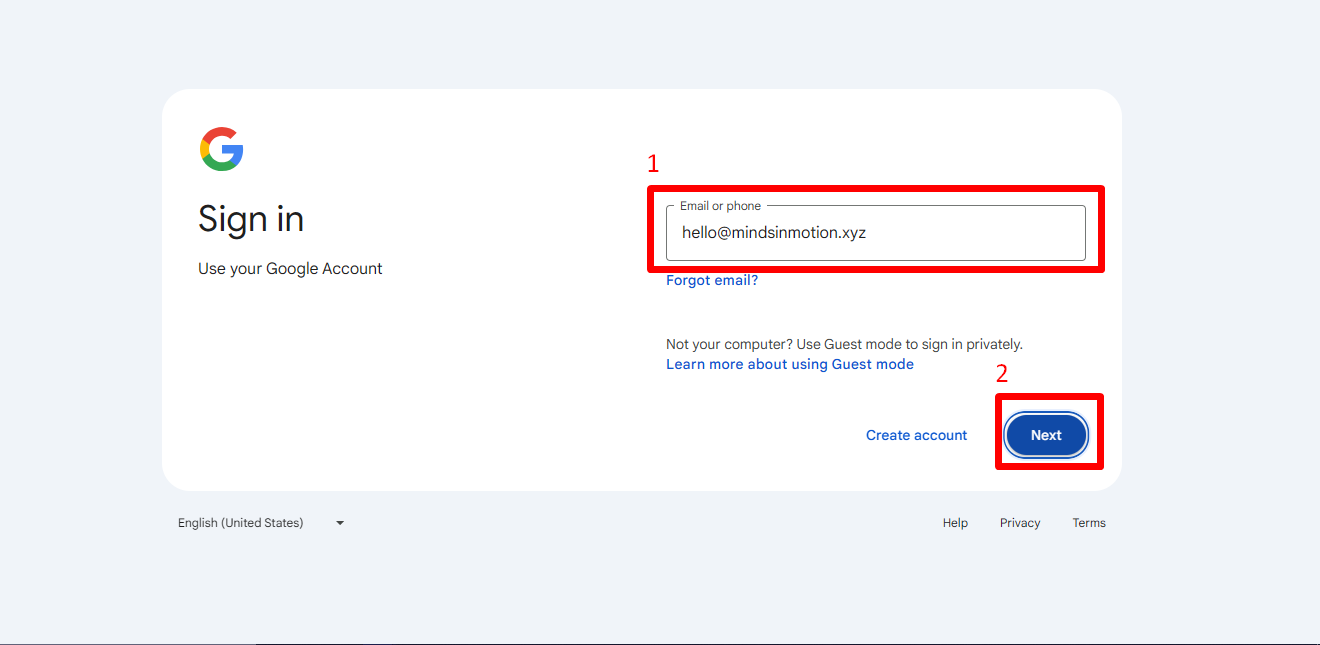
3
Click on the name of the group you want to manage.
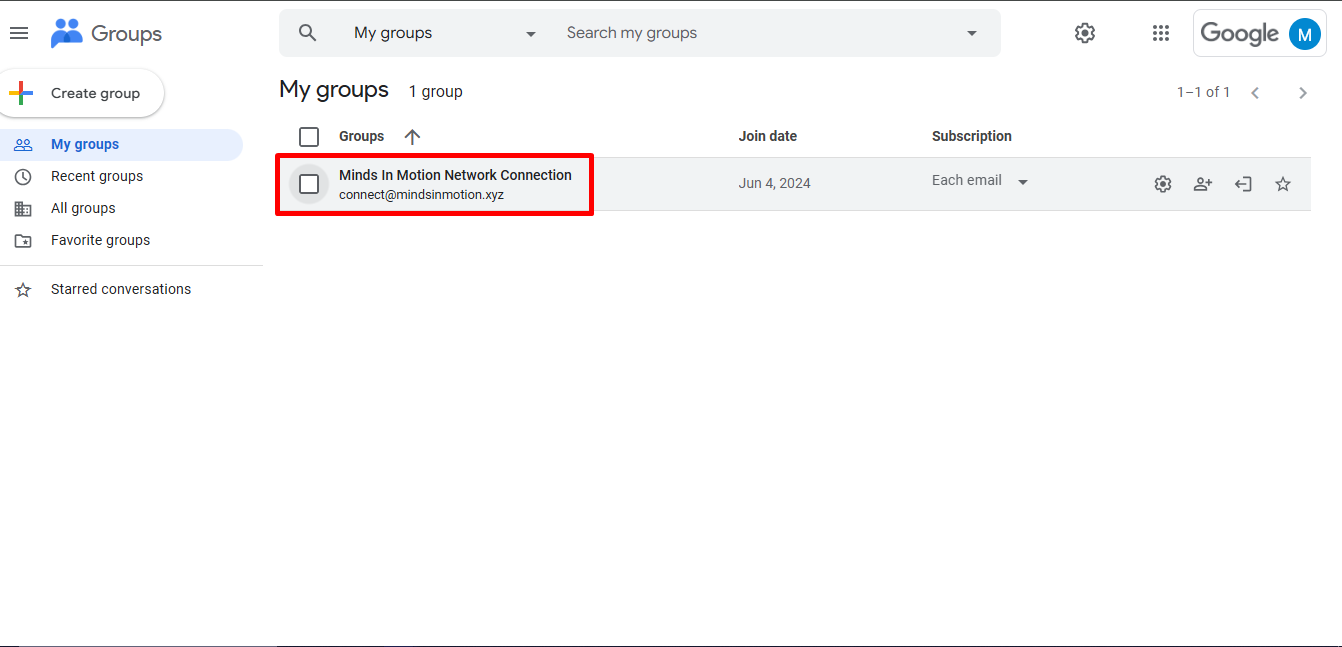
4
In the left sidebar, click on Members to view the list of group members.
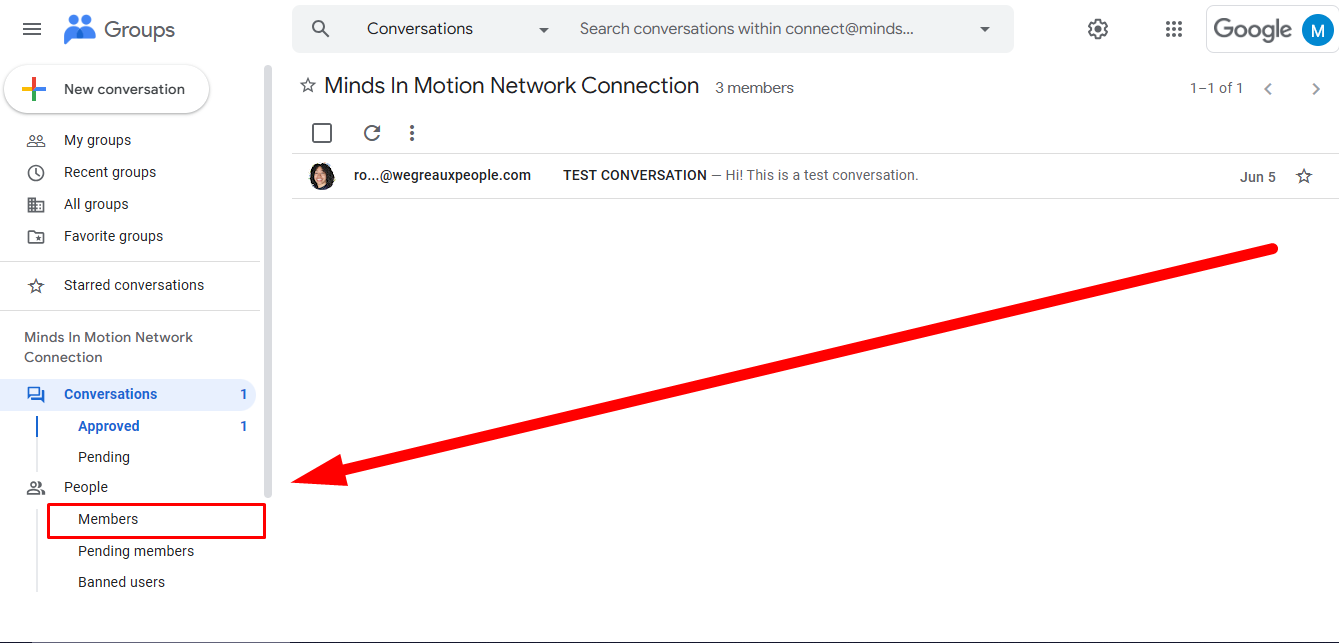
5
Add Members: Click the Add members button, enter the email addresses, and click Send invites. Remove Members: Click the checkbox next to the member's name, then click the Remove button. Change Roles: Click the member's name, then select a new role (Owner, Manager, Member).
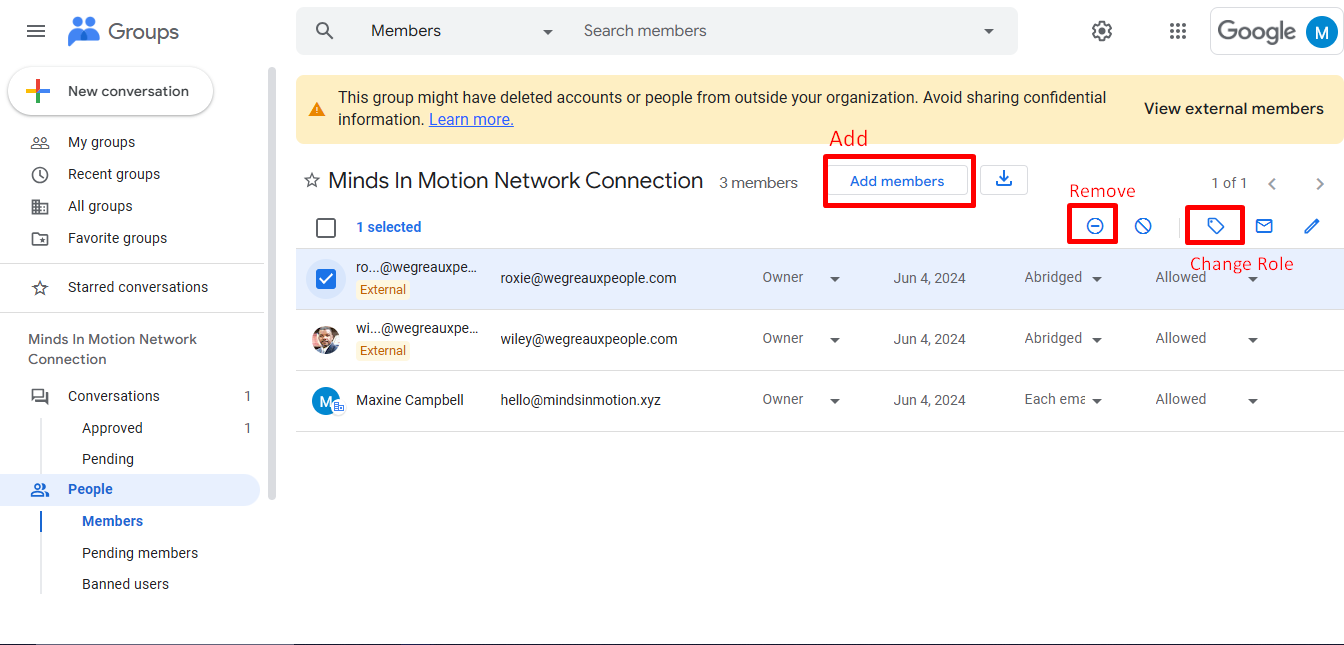
6
Done! 🚀